Thursday, 18 October 2012
Tuesday, 16 October 2012
Creating a SharePoint Foundation Wiki Lesson 1
First Create a Web Application
In this project we are going to create a wiki using SharePoint 2010 Foundation. Foundation does not support Enterprise Wikis, Managed Metadata or Publishing so you might wonder why one would use it to make a wiki. The reason is that Foundation is free, so if you have limited budget or you don't know how many users might access your wiki it may make good sense to use Foundation.In later lessons I will cover some tricks of getting more Information Architecture out of your Foundation Wiki, but today we cover the basics.
We start with an installation of SharePoint Foundation. If you need to cover installing them I have an intro in creating a stand alone Foundation server here, with an excellent 3rd Party YouTube video.
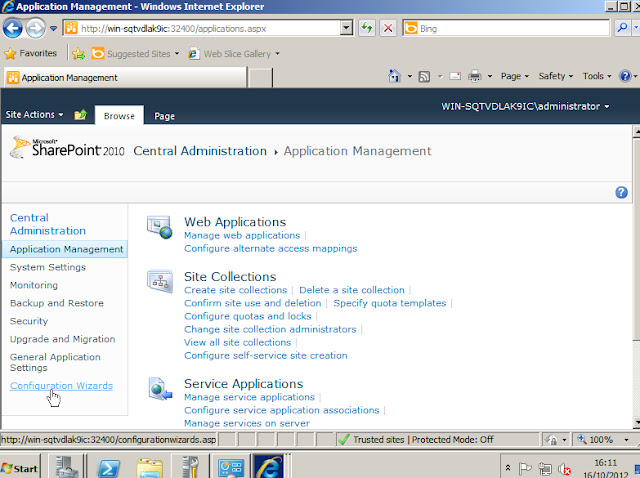
I start by opening the SharePoint Central Admin as seen below.
This brings up the Web Applicatino configuration page. I am keeping it very simple so I am going to used Classic Mode Authentication with NTLM on port 80.
Again keeping it simple I am not using a Managed Account for the Application Pool. Only do this in a development or demonstration book, in a real solution use a managed service. Now run th creation.
SharePoint may take a good deal of time to do this. Remember everything it has to do. It has to create a new IIS application and deploy the code to the Web Applicaion and write to the database.
Create A Site Collection
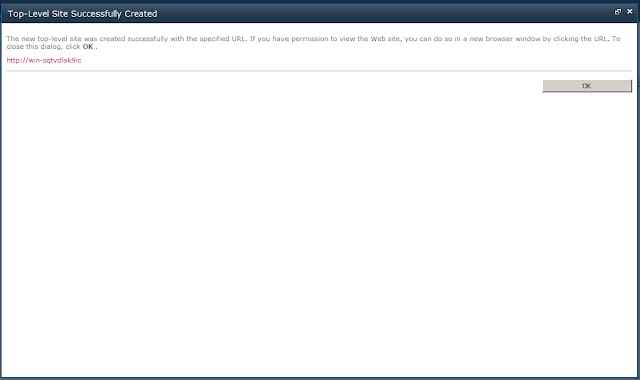
Once a Web Application is created you get this message below.You need to define an administrator to have control of it. Once it is done running you get this message telling you the site has been created. You can click on the link to see the page. If you created a different administrator than the one you are logged in as you will not be able to see the page.
The first page is OTB Team Site splash page, which were are going to change. This is how we change it.
Create the Wiki
We click the Quick Launch link on the left hand side to open All Site Content. We click the Create button.
In the Libraries select Wiki Page Library
Give the Wiki a Name, Description and decide if you want it to show up on teh Quick Launch page.
This creates an OTB wiki page. You will now build the wiki using the WYSIWYG browser tool. But we are going to make some configurations.
On the Ribbon we click Page, we can then click Make Homepage, which puts the Wiki page at the very top of the Web Applicaiton.
Then we select Site Themes
Standalone installation of SharePoint Foundation 2010
Best introduction to extraction and doing a proper install. But be warned, this is for stand alone installation, any Enterprise installation is going to need the missing steps of pointing to a SQL Sever database.
Still a stand alone SharePoint Foundation server will be useful for design, development, and demonstration. So if you are looking to learn SharePoint this build makes sense. I have developed this on a Virtual Box VM running in 64 bit mode on my iMac. Perfect environment for learning and experimentation.
The following are the key steps in building a stand alone SharePoint 2010 Foundation Server.
First you download the code.
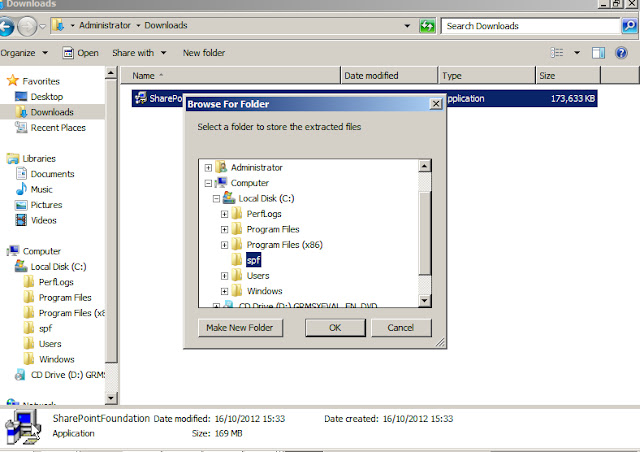
The download file is SharePointFoundation.exe, do not run this but extract it to a directory. My directory is c:/swp.
To extract a file run the command line for the file adding the command /extract after
Select the file you wish to extract it to. This is the recommended way to run install, for it allows you to run Pre-requisit check and install seperately.
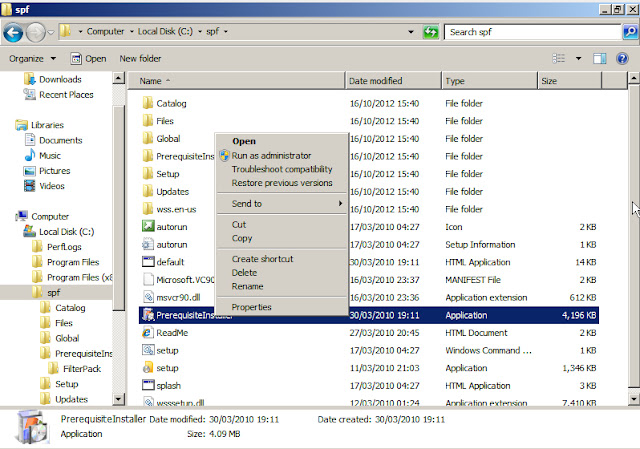
Run the PreequisitInstaller as administrator
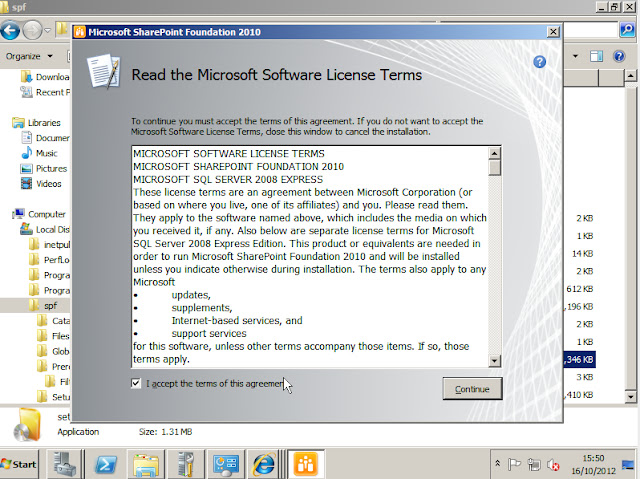
Accept the license
The installer will find missing prerequisites and install them. I found I had to run this twice to get it working, so if you get an error run it again.
Preparation tool running.
Successful prerequisite install.
Now select Setup and run as administrator
Accept the license
In this case we select standalone, which is a far simpler installation. Click next and SharePoint installs automatically. The you will need to run the SharePoint Configuration tool before you can use.
The welcome screen of SharePoint Configuration Wizard
Click the Run the SharePoint Product Configuration Wizard. Again much of this is okay for standalone but you may want to configure service roles in a Production environment using PowerShell.
Configuration runs
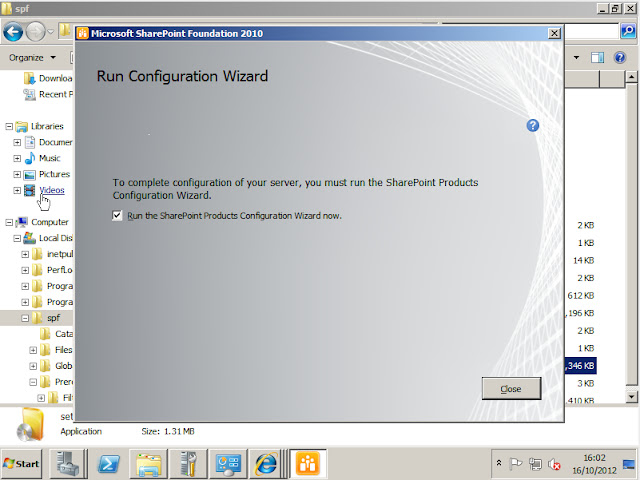
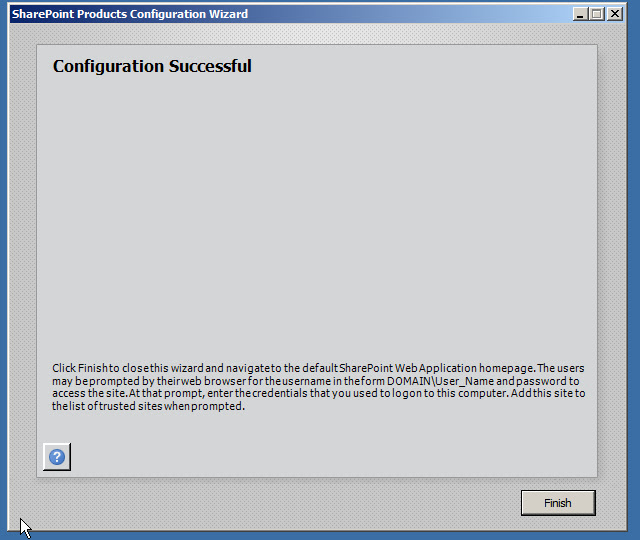
When completed you will get this window, which means you have installed SharePoint. You can now access the SharePoint Central Admin shown below.
Overview Tablet OS: Windows 8, Android ICS, and iPad
Two years ago you had three tablet options. Windows XP which required a stylus, Android for the phone or iPad. It was kind of a no brainer to go with the iPad. Since then a number of promised tablet OS systems have failed to make any impression including HP WebOS, RIMs tablet and MeeGo.
Not surprising at all the three giants that dominate our age have produced three tablet OS, but how do they compare. Microsoft, Apple and Google's Android are in a struggle over this key space in the computer industry. Today we just look at the high level style and feel.
Windows 8
Okay after ranting against this for a while we have to say that the new Start page rocks. It is easy to handle, had a clear easy to see color layout, and nice big buttons. Not sure how it will scale up when it has to handle hundreds of apps but it certainly looks good with the dozen of so apps we had, and easy to find apps and launch them with a finger. I found that the Windows 8 start screen is better for finding a large number of apps than the Android layout.
Odd as it is to say this: Windows 8 has pretty. Since you are probably going to be carrying a tablet around with you all the time, and maybe even falling asleep with one, you certainly want a home screen that looks nice. And you get that with Windows 8. It looks a lot better than my Android tablets.
Not surprisingly Windows 8 is pushing you to use your MSN/Hotmail license. It would have been nice to have Microsoft actually build good Cloud services before pushing then on us, but Microsoft's Cloud will also be a long term advantage to Windows 8.
Microsoft has embraced the App Store model. Now for the ecosystem to build stuff. This is probably the do or die feature but no doubt Redwood will be able to get plenty of people to build apps.
Windows 8 Best feature is it is Windows! That is to say you can use it in the same way you can use a PC, which Android and Apple iOS remain mostly large phones. So you can launch your Office applications and work on it just like a PC, something you really can't fully do with an iPad or Androids.
Android Ice Cream Sandwich
Like all the OS for tablet the makers are locking you in to their Cloud, in Google's case there is the Cloud there to make it really worth your while. I have been using Google Cloud for some time and it makes Android a logical chose for me, as it has my mail, pictures, blogs, and documents in one place. If you are not so linked in to Google Cloud Android is easily the worst of the three tablet OS. I hate to have to write this but it is my opinion.
Android does boot up much faster than Windows 8, so you will get more function out of your hardware. But it still is essentially a big phone. Not really a work device yet.
Essentially Ice Cream Sandwich is a way to navigate a tree of apps. The graphic quality of this experience will vary with hardware producer, but generally it is inferior to Apple. The interface of app icons leaves something to be desired. This interface is substandard to the new Start screen developed for Windows 8.
Apple iPad iOS
What can be said about this device of devices? Hard to think of anything that can be said that has not been said already. For what it is it is perfect. Easy and fun to use, amazing graphic quality, intuitive UI design iPad sets the standards for all other tablets.
Apple is the standard everyone else aims to.
The largest collections of app in the Universe provide a rich set of useful tools.
A media system that set the worlds standard. The best mobile surface for video, movies and music very created.
If I could find one thing to fault the iPad with is that it is not much of a work tool. The productivity tools all end up being little more than note taking tools or document reading tools. Windows 8 ability to run Office will be a real defining feature that will likely cost iOS in the future, unless they counter it quickly.
Okay its still really just a big phone, but oh what a big phone it is.
Monday, 10 September 2012
Tour of Open Source Create Tools
As a consultant on SharePoint I understand two issues many of my clients face, firstly they need to create a lot of new web content which means making a lot of gif, jpg, and png files. The other issue is that SharePoint can be expensive and there is a need to find cost savings.
This is why I recommend GIMP and other open source creative tools to cut the costs of buying Adobe and other software.
Subscribe to:
Posts (Atom)