Showing posts with label edit. Show all posts

Wednesday, 31 October 2012

Create and Edit a Wiki in SharePoint Foundation

Editing SharePoint Wiki
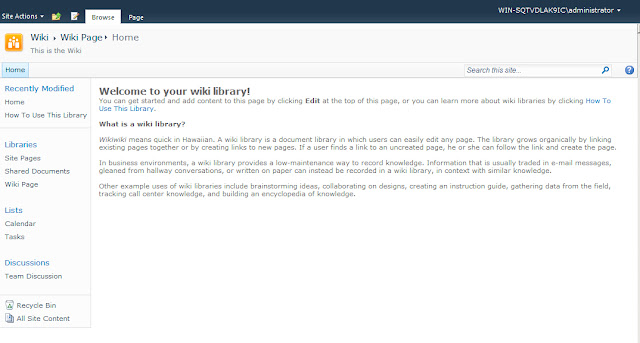
First start with the Home page of the wiki, or any page in the Wiki where you hope to create a new page. Click the Page tab on the top right hand side of the page.  If you don't have a Page tab you don't have rights to edit the page.
Editing SharePoint Wiki
Clicking page brings up SharePoint's Ribbon.  Click View All Pages in the Ribbon to see a List of All Pages in the Wiki

Editing SharePoint Wiki
This brings up a list of all the Wiki Pages
To Add a new wiki page click the Add New Page link at the bottom of the list.  Provide a title for the Wiki page.  Be careful to not make any typos in the title, as it is will be used as the Wiki page name even if you change the title in the future. Click create.
Editing SharePoint Wiki
This creates a new blank wiki page.  It is critical that if you are going to paste text in to the page you use the Paste, Pates plaintext link in the Ribbon.  If you just use Ctrl -V to paste text you will carry over formatting from the original document, that can make you page look inconsistent, be hard to manage, and maybe not even show up properly on some machines.

Editing SharePoint Wiki
SharePoint Foundation provides the Ribbon to Edit Text.  To save changes to the new Wiki click Save & Close.  To edit a Wiki Page click the Page Tab and first Check Out (to Check Out the Document) and Edit.  Both Check Out and Edit are in the right hand of the Ribbon.  Once you are dune editing a page click Check In on the top Ribbon.  Checking in will ask you to provide a comment for the version, and to fill out all necessary Metatadata
 

Editing SharePoint Wiki
To add a href link to any web page on the Internet or intranet, you click Insert, highlight the text and click Link.

Editing SharePoint Wiki
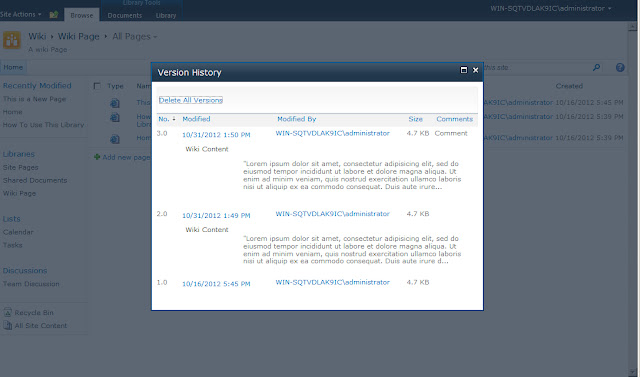
With version control turned on for Wikis each check-in creates a new version.  You can view version history by going to the Wiki Library, mousing over a item and right mousing clicking.  From the menu that shows up select Version history.